With the Excel Add-in, you can either download in Excel the constituents of a portfolio created and saved on the IPT, or upload through the web a new portfolio of instruments from Excel.
Download a portfolio
To download the constituents of your portfolio in Excel:
-
Select Lists/Portfolios in the Excel Add-in ribbon.

-
Select Download Portfolio (BETA)
-
Choose the portfolio to download selecting the corresponding name.
-
You can either decide to download only the instrument codes of your list. For that, just check the “Download Code only” option before downloading the list.
-
Click Download Portfolio.
-
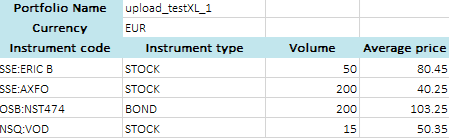
Your portfolio will be displayed on Excel with it's name, the currency set for the whole portfolio and the details of the instruments saved.
Upload a portfolio
Only Instruments positions are available yet. There will be an update of this option to integrate Cash and Others positions.
To create a new personal portfolio by uploading its constituents from Excel:
-
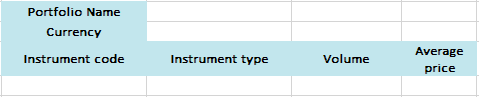
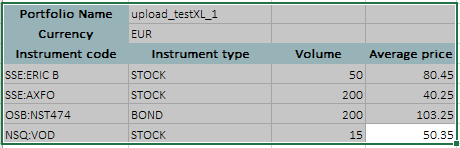
In an Excel workbook, you will need to recreate the header cells before listing the constituents.
-
At least some information / header would be mandatory :
-
The portfolio’s name (header and value are mandatory).
-
The currency header is mandatory, the value is optional
-
The ticker of your instrument completed with the market value:
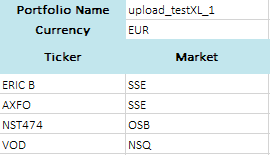
Or the instrument code:
-
-
Component supported:
-
Instrument
-
Instrument via instrument code or ticker
-
ISIN
-
Currency
-
Market (code)
-
Feed (number)
-
Instrument type
-
-
Position (linked to the instrument declared before)
-
Volume
-
Average price
-
-
Cash
-
Description
-
Currency
-
Value
-
-
Other
-
Description
-
Item type
-
Currency
-
Value
-
-
-
Compose your list with those elements. All the mandatory values have to be set (ticker and market / or instrument code). The others are optional. You can leave the value empty. In that case, volume and average price would be set as null (0.0).
-
Select all corresponding cells.
-
Click on Lists/Portfolios in the
ribbon.
-
Select Upload Portfolio (BETA).
-
The name and currency will be set with the values entered. You will have to choose a currency from the list otherwise.
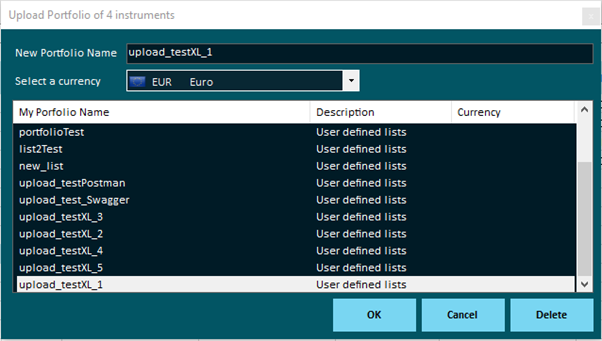
-
Click OK.
-
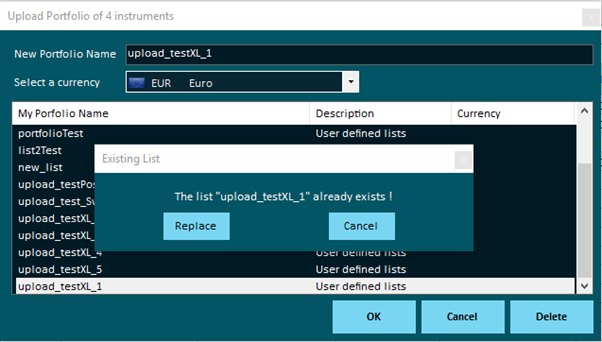
If the portfolio already exists, or the name is already used for another one, you will be given the choice to replace the former portfolio.
-
By clicking Replace, you will erase the previous portfolio by the new one.
-
You can also change the name directly into the form in case you want to keep both of the portfolios.
-
Once done you will get a notification.